Syncing Your Partiful Events
If you RSVP to events on Partiful, you can pull them into your dashboard here. One place for everything you're going to.
Find any event you're attending
Open Partiful and go to any event you've RSVP'd to.
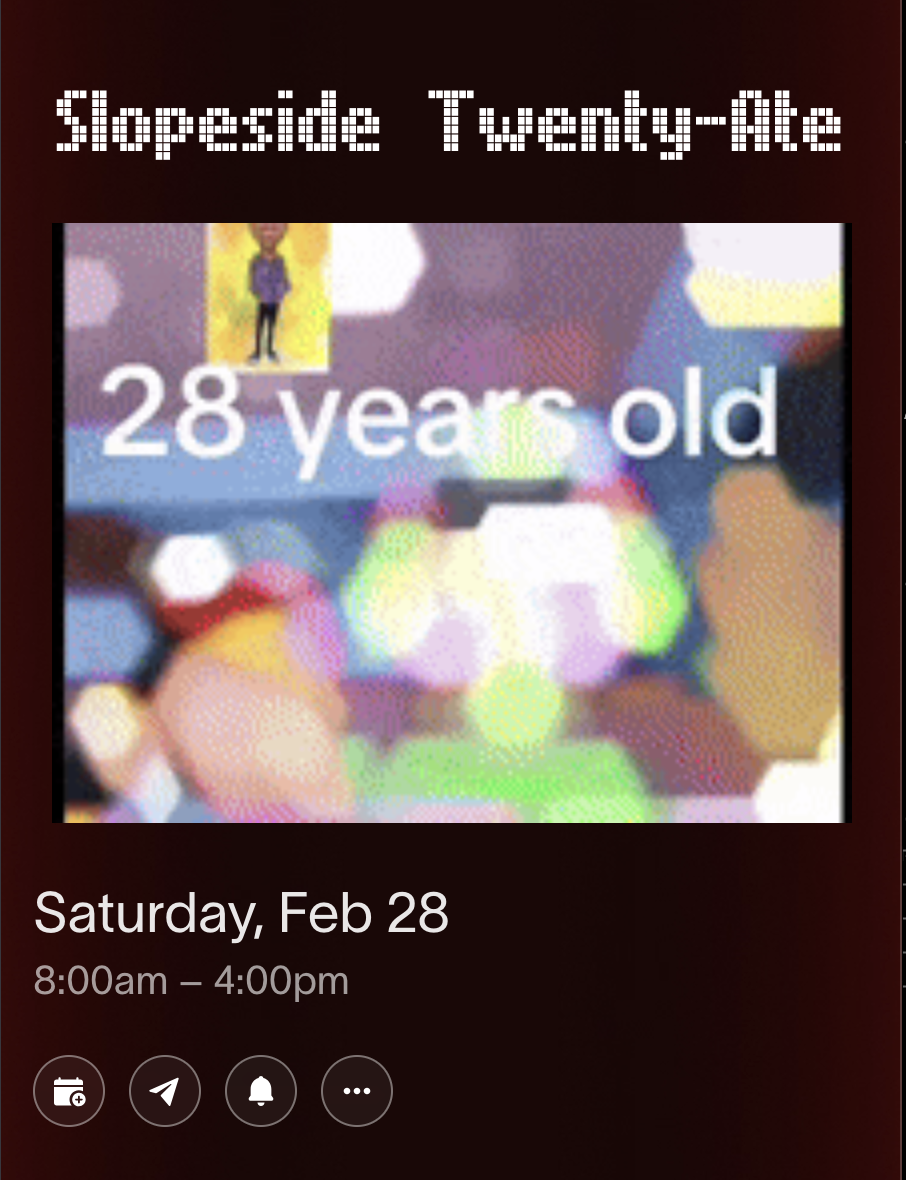
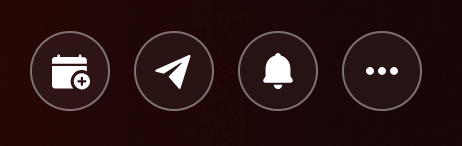
Tap the calendar icon
Look for the calendar icon in the action bar below the date — it's the one with a plus sign.
Copy the link
You'll see options for Apple Calendar, Google Calendar, and others.
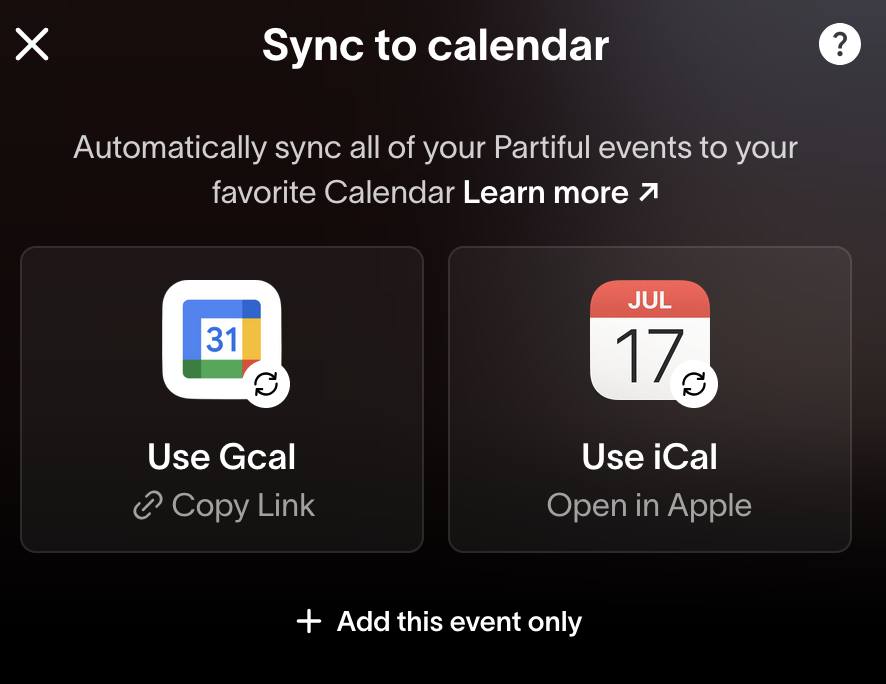 Tap Google Calendar or Copy Link — both copy a subscription link to your clipboard. This link includes all your Partiful events, not just this one.
Paste it into your profile
Go to your profile settings here. Under Connected Calendars, tap Add Calendar Feed.

Paste the link you copied from Partiful.

We'll validate it and start syncing. Your Partiful events show up on your dashboard within a few minutes.
What you'll see
Partiful events appear alongside your regular events, marked with a Partiful badge. Tap one to open it on Partiful.

We check your feed periodically. New RSVPs appear automatically. If an event time changes, we update it.
See also: Adding to Your Calendar, Setting Up Your Profile