When composing a new message, check "Schedule for later."
A date and time picker appears. Pick when the message should go out.
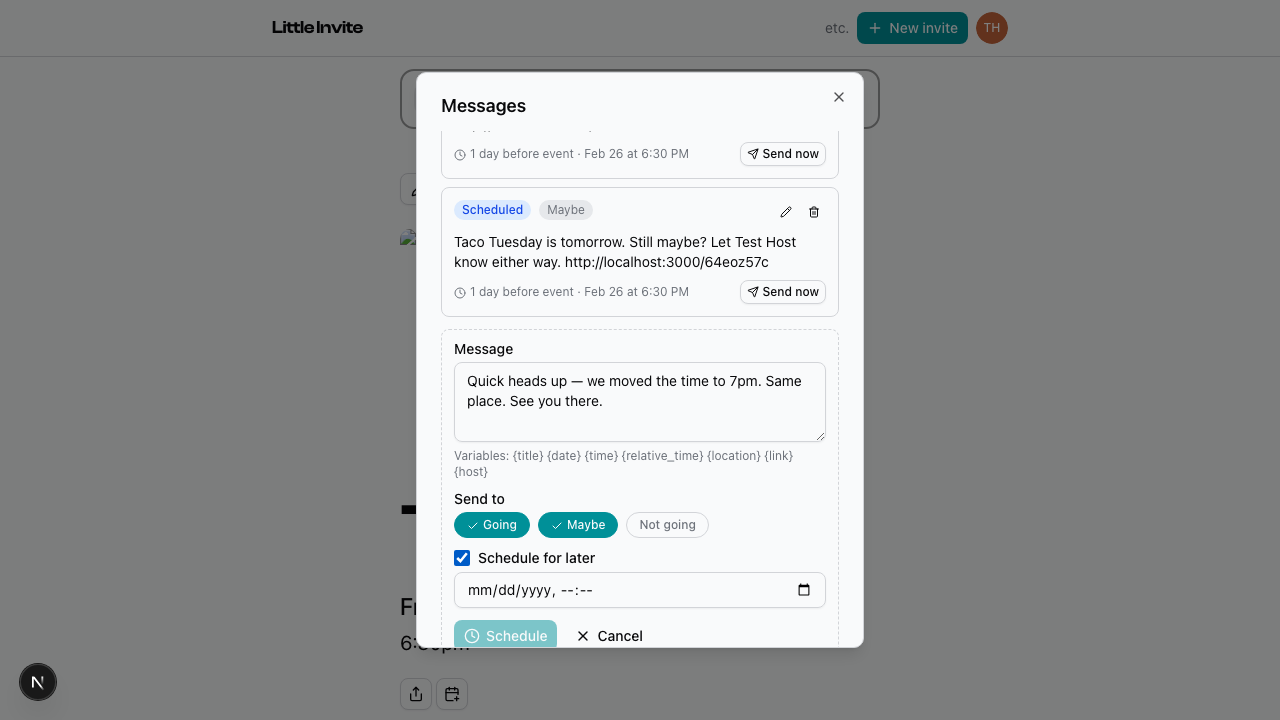
Tap "Schedule" to save it. The message shows up under "Upcoming" with a scheduled badge.
You can edit a scheduled message anytime before it sends — tap the pencil icon. To delete it, tap the trash icon. Gone.
If you move your event date, offset-based reminders (the automatic ones) reschedule themselves. If the new date makes a reminder fall in the past, it gets paused until the date moves back.
You can also hit "Send now" on a scheduled message to bypass the schedule and send immediately.
See also: Sending a Message