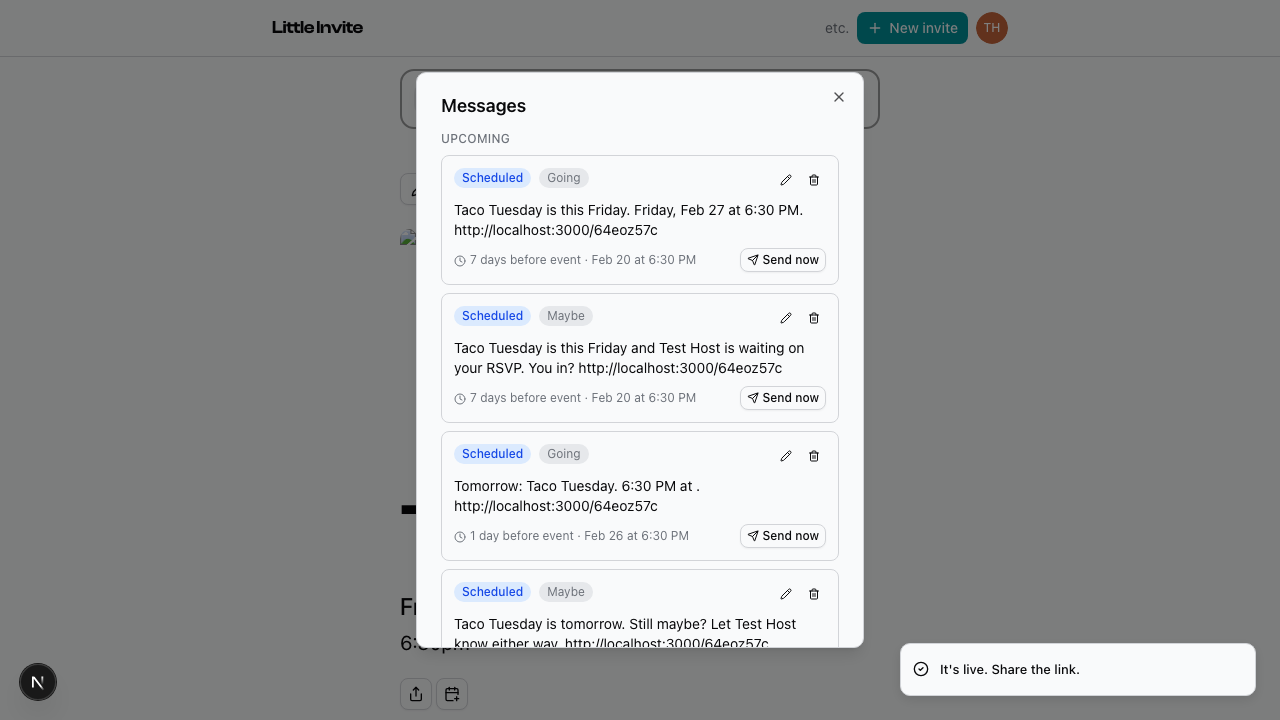
Once your event is published, a Messages button appears on the event page. Only hosts see it.
Tap it to open the messages panel.
Tap "New message" to compose. Write your message in the text field.
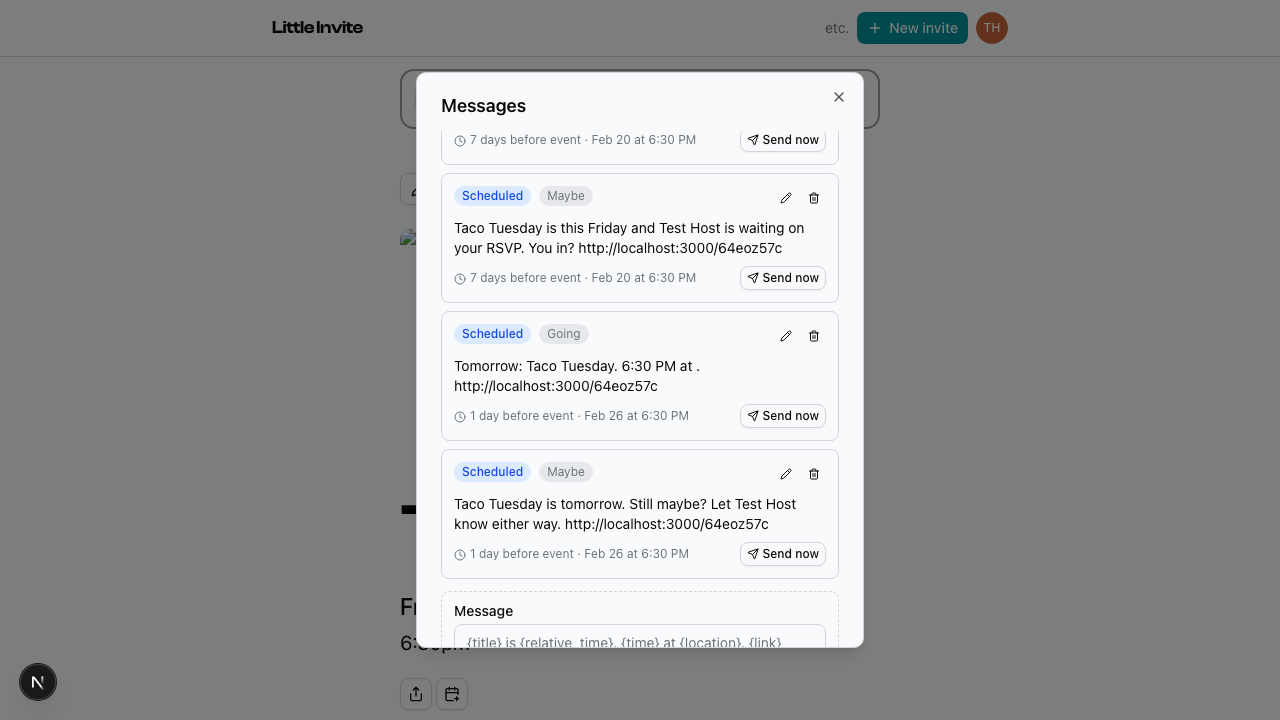
You can use variables that fill in automatically for each guest:
{title}— the event name{date}— the event date{time}— the event time{relative_time}— something like "in 3 days"{location}— the event location{link}— a link back to the event page{host}— your name
Choose who gets it: Going, Maybe, or Not going. You can select multiple groups.
Tap "Send now" to send immediately. The message gets queued and delivered via SMS and push notifications.
Your sent messages show up in the "Sent" section of the panel. They also appear in the activity feed for guests who RSVP'd Going or Maybe — so even if someone misses the text, they'll see it when they check the event page.
Two default reminders are set up automatically when you publish — a 7-day and a 1-day reminder. You can edit or delete these.
See also: Scheduling a Message, Publishing Your Event