Some things are easier with a second host — someone to answer the questions, send the nudges, and keep the plan moving while you handle everything else. You can hand part of that over.
A co-host can do almost everything you can: edit the details, message guests, sort out RSVPs, and share the link. It's still your event. You just have backup.
Send the invite
Open your event and tap Edit. Scroll past the description to the row of buttons and tap Invite co-hosts.
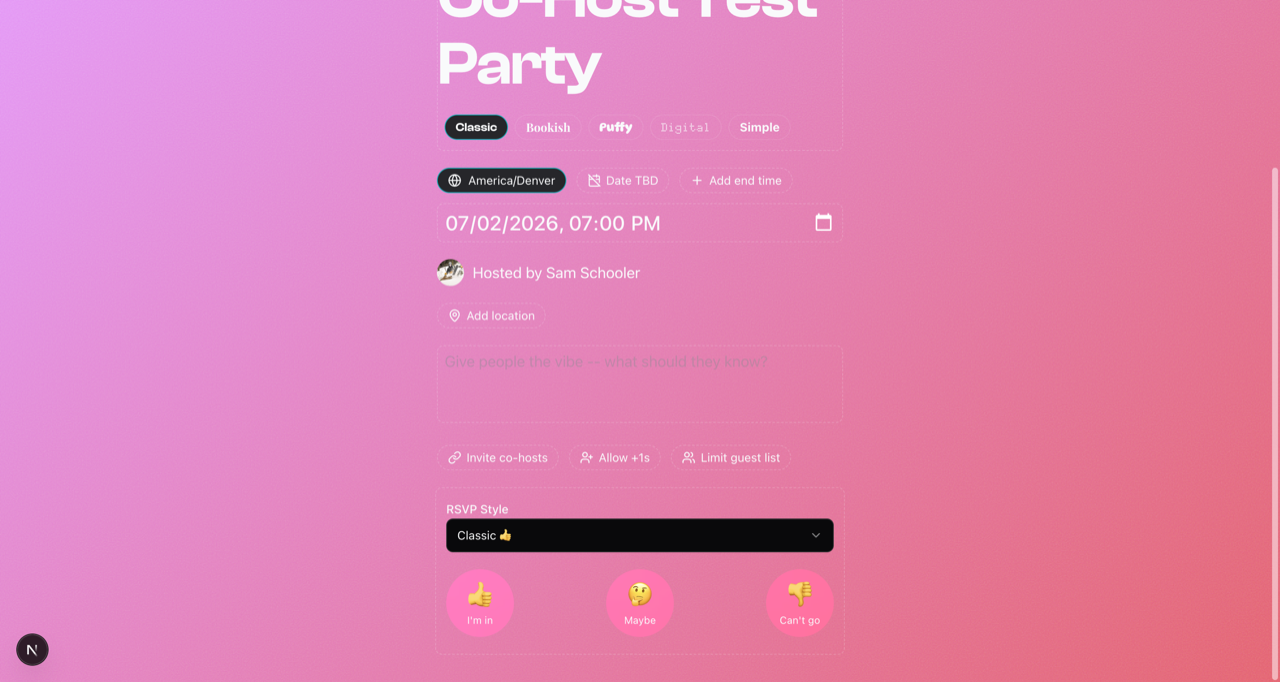
A private link gets made and copied to your clipboard. The button switches to Copy co-host link, so you can grab it again whenever you need it.
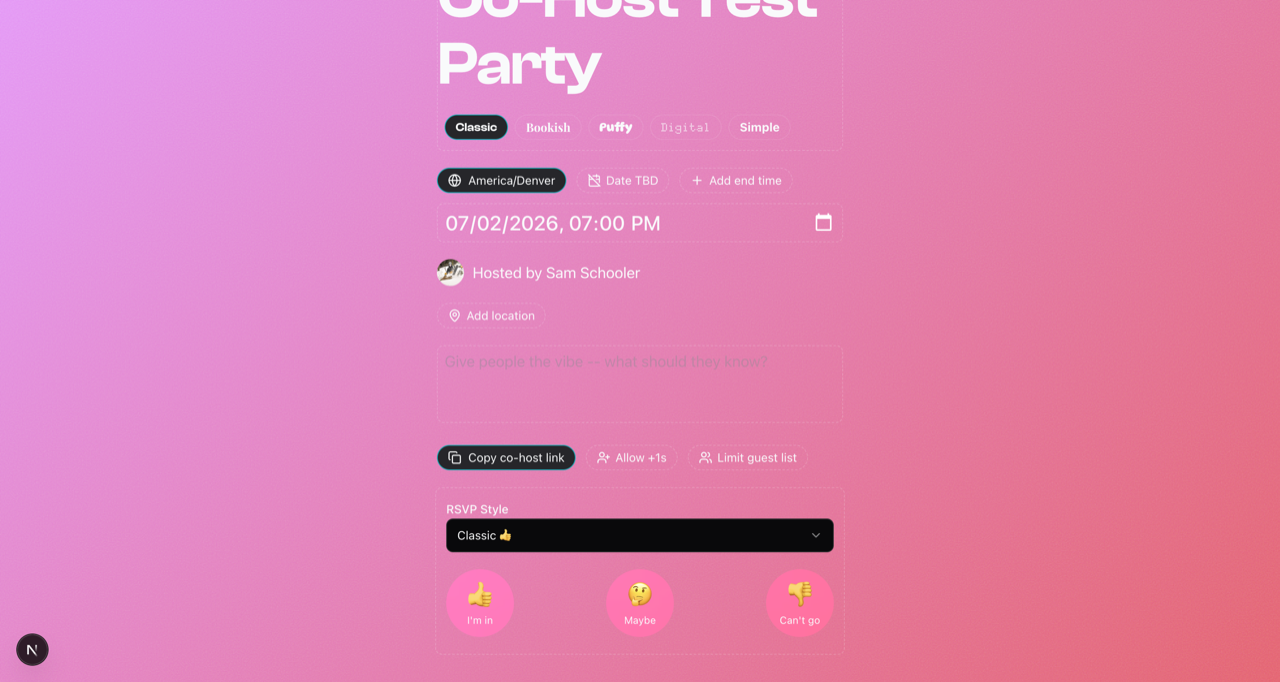
Send that link to whoever's helping — text, DM, wherever you already talk. Anyone with the link can accept, so only send it to the people you actually want hosting.
What they see
When they open the link, they get one simple ask: be a host for your event?
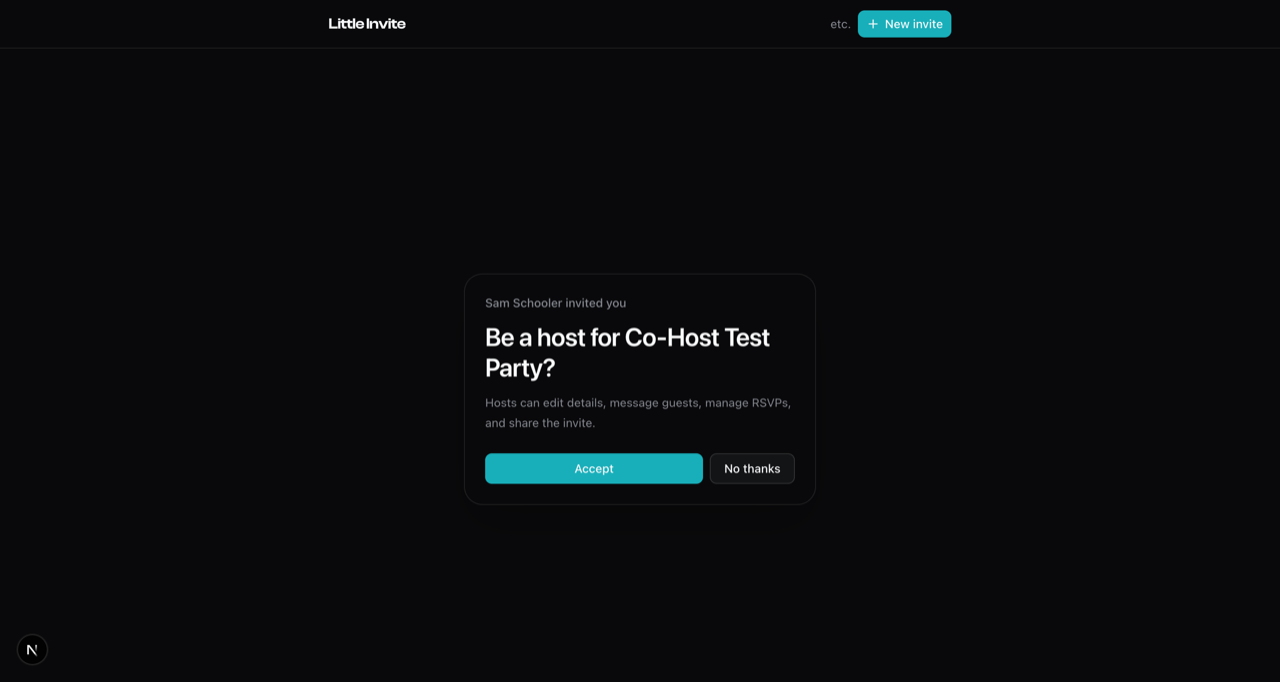
They tap Accept and they're in. If they've never used Little Invite, they'll sign in with their phone first — takes a few seconds. From then on, the event shows up on their side too, and they can pick up right where you left off.
Adding more than one
Each link works once. The moment someone accepts, it's spent — send the same one to two people and only the first to tap Accept gets in. The other just hits a dead link.
So bring co-hosts on one at a time:
- Send the link and wait for them to accept.
- Open the editor again and tap Invite co-hosts for a fresh link.
- Send that one to the next person.
Heads up: once you've made a link, the button reads Copy co-host link and only re-copies that same one. To mint a new link for the next person, reopen the editor and tap Invite co-hosts again. A link you never send sticks around for 14 days, then expires on its own.
Add as many co-hosts as you want — just one link at a time.
See also: Editing Event Details, Your Guest List, Sending a Message